

- How to Create a Windows 7 To Go USB Drive with Hasleo WinToUSB
- Frequently Asked Questions
- Conclusion
A Windows 7 To Go USB drive is a portable Windows 7 installation on a USB stick that you can carry with you and boot on another computer. In 2026, it remains one of the most practical solutions for several specific tasks: flashing the BIOS on old motherboards that only work with Windows 7, running legacy industrial, medical or CNC software that refuses to start on Windows 10/11, using old printers and scanners thatlack modern drivers, playing classic games, and recovering data from a Windows 7 machine.
Windows To Go (WTG) is an enterprise feature of Windows 8 Enterprise, Windows 8.1 Enterprise, Windows 10 Enterprise and Windows 10 Education. Microsoft's built-in Windows To Go Creator Wizard could create Windows 10/8.1/8 To Go drives, but it never supported Windows 7. Since Microsoft removed Windows To Go entirely from Windows 10 version 2004 and later, a third-party tool is now required.
Hasleo WinToUSB was the world's first third-party software designed to create Windows To Go USB drives, and it is the free tool that still supports Windows 7. In this tutorial we will show you how to create a Windows 7 To Go USB drive step by step.
2. Windows 7 has no built-in USB 3.0 drivers, so it must boot from a USB 2.0 port and will run at USB 2.0 speeds.
How to Create a Windows 7 To Go USB Drive with Hasleo WinToUSB
Step 1. Connect the USB drive to the computer, download, install and run Hasleo WinToUSB and then click the "Windows To Go USB".
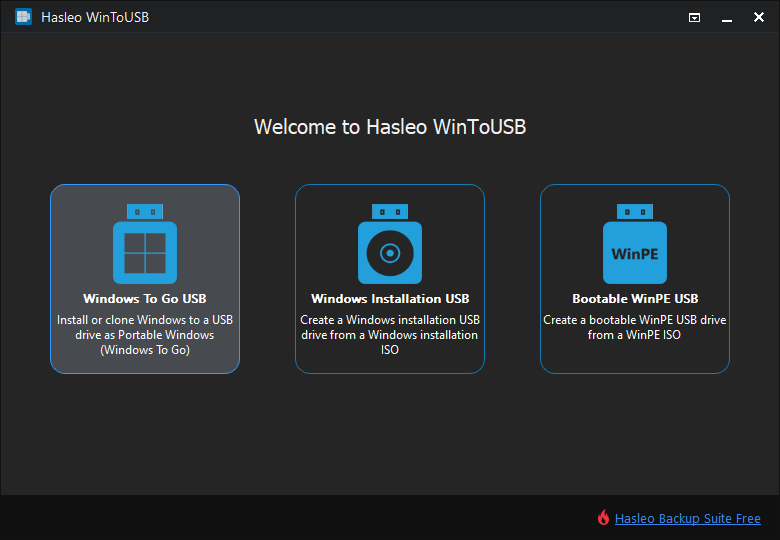
Step 2. Click "Select installation source", then click "Browse image file" and select the Windows 7 installation ISO file from the open dialog box as installation source, or choose a CD/DVD drive with a Windows 7 installation DVD inserted as the installation source.

Step 3. Hasleo WinToUSB will scan for and list the available Windows editions. Please select the edition you want to install.

Step 4. Click "Select destination drive" and select the destination drive from the pop-up drive list. If the drive is not correctly recognized by Hasleo WinToUSB, you can click the  button for the program to recognize the drive.

Step 5. Choose the partition scheme and installation mode you want to use, and you can specify additional drivers or enable BitLocker to encrypt the Windows To Go external hard drive according to your needs, then click "Proceed".

2. If you choose "Keep the existing partition scheme", you need to manually prepare the partitions on the USB drive before this step, and here is the user guide on how to manually prepare partitions for Windows To Go.
Step 6. After clicking "Proceed", a pop-up will appear asking you if you want to format the drive to continue. Click "Yes" if you are sure.
Step 6. After clicking "Proceed", a pop-up will appear asking you if you want to format it to continue, click "Yes" if you are sure.

Step 7. After clicking "Yes", WinToUSB begins installing Windows to the destination drive.

Step 8. It takes some time to install. After installation restart the computer and change BIOS to boot from the USB drive.
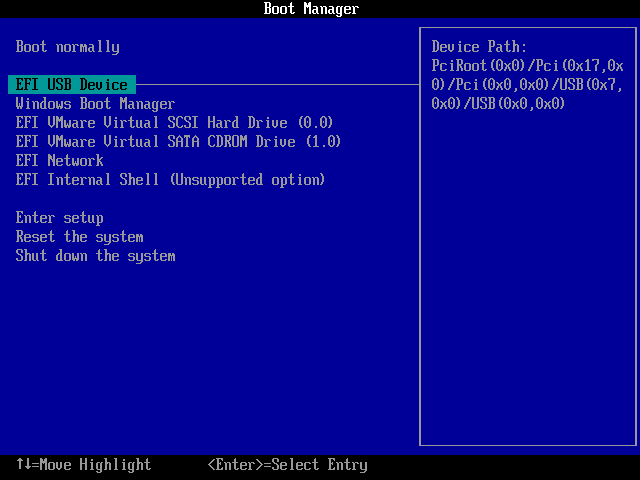
Step 9. Windows 7 normal installation starts up and you have to complete all the installation steps. After that, you can install programs, copy files, etc.

Frequently Asked Questions
A: Windows 7 To Go may have driver compatibility issues on different computers due to lack of built-in USB 3.0 support. We recommend using Windows 7 To Go only on the same computer where it was created, as driver issues may occur when booting on different hardware.
A: Only 64-bit Windows 7 supports UEFI boot. Windows 7 does not have built-in USB 3.0 support, so it must be booted from a USB 2.0 port. For best results, use a USB 2.0 port when booting Windows 7 To Go.
A: For maximum compatibility, we recommend using 'MBR for BIOS and UEFI' partition scheme. This allows Windows 7 To Go to boot on both legacy BIOS and modern UEFI computers.
A: Yes, with WinToUSB Professional, you can clone an existing Windows 7 installation to a USB drive. This is useful if you want to migrate your current Windows 7 system to a portable Windows 7 To Go.
A: Microsoft recommends at least 16GB USB drive for Windows 7 To Go. However, we recommend using at least 32GB to ensure enough space for Windows updates and additional files.
Conclusion
Following these steps, you can create a Windows 7 To Go USB drive with Hasleo WinToUSB, then run Windows 7 from that drive on another computer. You can also clone your existing Windows 7 installation to a USB drive as Windows 7 To Go, instead of starting from an ISO file. For creating installation media to install Windows 7 on a computer, see how to create a Windows 7 installation USB drive with UEFI support.
As the world's first third-party Windows To Go creation software, Hasleo WinToUSB can create not only Windows 7 To Go, but also Windows 8 To Go, Windows 10 To Go, and Windows 11 To Go. You can even use it to create portable Windows from system backup images made by Hasleo Backup Suite.
Related Guides
- How to create a portable Windows 11/10 USB drive?
- How to Clone Windows 7 to USB Drive as Windows 7 To Go??
- How to create Windows 10 To Go on a USB flash drive with both BIOS and UEFI support?
- How to create Windows 8 To Go without an enterprise edition of Windows 8?
- How to clone Windows 10 to an external hard drive as portable Windows 10?


